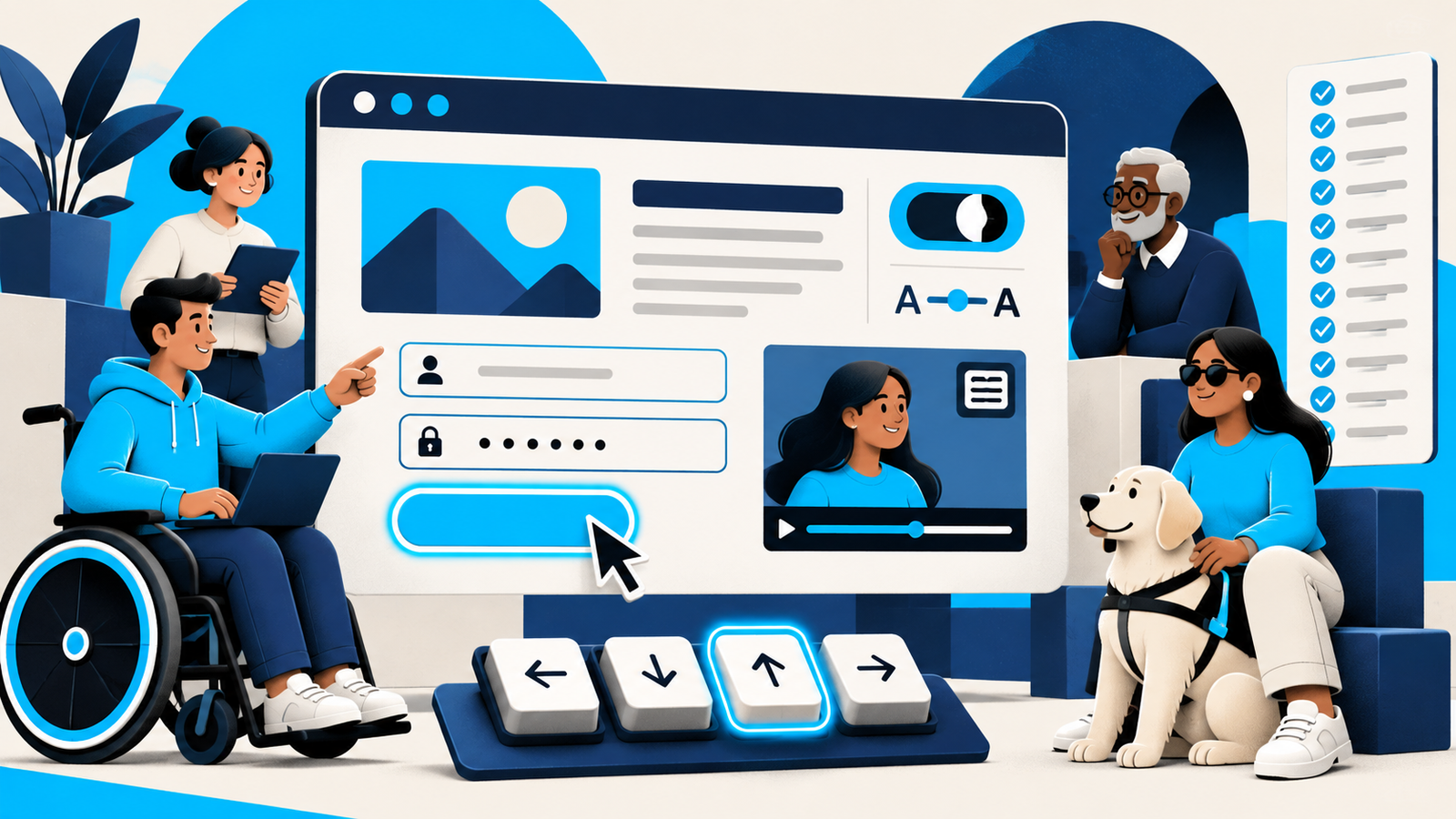
Website accessibility means removing barriers so more people can understand, navigate, and use your site. For a small business, the work starts with practical design and content decisions—not a badge or one-click overlay. Use this 15-point checklist to find the most important improvements.
This article provides general educational information, not legal advice or a guarantee of compliance. Accessibility obligations can vary by organization and jurisdiction.
Why website accessibility matters for small businesses
Customers use websites in many ways. Some navigate by keyboard, use screen readers, magnify content, rely on captions, need stronger contrast, or benefit from plain language and predictable layouts. Accessible design helps more people compare services, complete forms, and contact your business independently.
Many accessibility improvements also strengthen general user experience and SEO: meaningful headings clarify structure, descriptive links add context, text alternatives explain images, and usable mobile layouts reduce friction. The goal is not to chase a perfect score. It is to build a better experience, test it, and keep improving it.
The 15-point website accessibility checklist
1. Use sufficient color contrast
Text and essential interface elements need enough contrast against their backgrounds. Test normal text, large text, buttons, form borders, icons, and hover or focus states. Do not place copy over a busy photo without a reliable overlay. The W3C accessibility design tips recommend good contrast and avoiding color as the only way to communicate information.
2. Do not rely on color alone
If a form error is shown only with a red border, some users may miss it. Add an icon and a clear message. Selected states, required fields, chart values, and success notices should have a second visual or text cue.
3. Add useful alternative text
Write alt text for informative images that communicates their purpose in context. A project photo might be “Completed standing-seam metal roof on a two-story home.” Decorative shapes can use empty alt text so assistive technology skips them. Avoid stuffing keywords into every image description.
4. Create a logical heading structure
Use one descriptive H1 for the main page topic, followed by H2 sections and H3 subsections in a meaningful order. Do not choose heading levels only because of their visual size. Screen-reader users often navigate by headings, and a clear structure also makes long pages easier to scan.
5. Make every function keyboard accessible
Unplug the mouse and move through the page with Tab, Shift+Tab, Enter, Space, and arrow keys. You should be able to open navigation, activate buttons, use accordions, control forms, and close dialogs. Avoid keyboard traps where focus enters a component but cannot leave.
6. Keep focus indicators visible
Keyboard users need to see which element is active. Do not remove browser outlines without adding an equally clear focus style. The indicator should remain visible against light and dark backgrounds and should not be hidden behind sticky headers or overlays.
7. Label every form field
Place a persistent, descriptive label with each field. Placeholder text is not a replacement because it disappears as users type and may have weak contrast. Mark required fields clearly, group related controls, and explain the expected format before an error occurs. W3C’s accessible forms tutorial covers labels, instructions, validation, and feedback.
8. Write errors that explain how to recover
“Invalid input” is not enough. Tell the user which field needs attention and how to fix it, such as “Enter an email address in the format name@example.com.” Move focus to the error summary or first invalid field when appropriate, and preserve information the user already entered.
9. Use descriptive links and buttons
Replace vague labels like “Click here” with language that makes sense out of context: “View roofing services” or “Download the website brief.” If several buttons say “Learn more,” add accessible names that identify the destination.
10. Make text readable and resizable
Use a comfortable base font size, sufficient line height, sensible line length, and strong separation between paragraphs. Test the page at 200% browser zoom. Content should reflow without forcing horizontal scrolling for ordinary text or hiding controls.
11. Design for responsive reflow
Mobile accessibility is more than shrinking the desktop layout. Keep tap targets comfortably sized and separated, avoid fixed-height containers that cut off text, preserve a logical reading order, and prevent sticky elements from covering content. Test portrait and landscape orientation.
12. Provide captions and transcripts
Videos with speech need accurate captions. Audio content should have a transcript, and important visual information in a video may need description in the narration or nearby text. Review auto-generated captions; names and industry terms are often incorrect.
13. Give users control over motion
Avoid flashing content and aggressive autoplay. Respect the reduced-motion preference for nonessential animations. Carousels should have clear controls and enough time to read. Movement should support understanding, not compete with it.
14. Use semantic HTML before custom workarounds
Real buttons, links, lists, labels, headings, and landmarks carry useful behavior and meaning. A styled div is not automatically a button. Native elements usually provide better keyboard and assistive-technology support with less code.
15. Test with people and multiple methods
Automated scanners can find missing alt text, contrast failures, and some code errors, but they cannot judge whether navigation is understandable or an alt description is useful. Combine automated checks with keyboard testing, screen-reader spot checks, zoom and mobile testing, and feedback from people with disabilities.
A simple small-business testing routine
- Choose the homepage, top service page, contact form, and one representative article.
- Complete the main task on each page using only a keyboard.
- Check headings, links, labels, alt text, and error messages.
- Review contrast with a reputable testing tool.
- Zoom to 200% and test a narrow mobile viewport.
- Run an automated scan and review every finding manually.
- Record issues by severity, owner, and target date.
- Retest after fixes and whenever templates change.
Common accessibility mistakes to avoid
- Installing an overlay and assuming the website is now accessible.
- Using tiny gray text because it looks minimal.
- Removing focus outlines for aesthetic reasons.
- Putting essential instructions inside images.
- Using sliders that move too quickly or cannot be paused.
- Launching forms without testing error and confirmation states.
- Treating accessibility as a one-time project instead of ongoing maintenance.
Accessibility, SEO, and conversion
Accessibility and SEO are different disciplines, but they often reward the same fundamentals: meaningful page structure, understandable copy, mobile usability, descriptive links, and content that can be interpreted without decoration. Better forms, clearer calls to action, and readable layouts can also improve conversion because fewer visitors encounter avoidable friction.
Accessibility should be included in the design system, content workflow, and maintenance plan. If you are already reviewing why a site is underperforming, use our guide to fixing a small-business website that is not generating leads alongside this checklist.
Frequently asked questions
Can an automated tool guarantee website accessibility?
No. Automated tools are useful for finding certain technical issues, but they cannot fully evaluate context, clarity, usability, or every interaction. Human review and ongoing testing are essential.
Is WordPress accessible by default?
WordPress provides many accessible foundations, but the final experience depends on the theme, blocks, plugins, content, and custom code used. Each template and interaction still needs testing.
How often should a small business test accessibility?
Test during design and development, before launch, after major theme or plugin changes, and on a recurring schedule. Also retest high-value forms and navigation whenever content or components are updated.
Make accessibility part of the website foundation
The strongest approach is to design access into the site from the beginning, then maintain it as the business grows. WebInCave builds custom, responsive websites with user experience and SEO considered together. Tell us about your website and we’ll help identify the most useful next step.